
Protect your account with an authenticator app
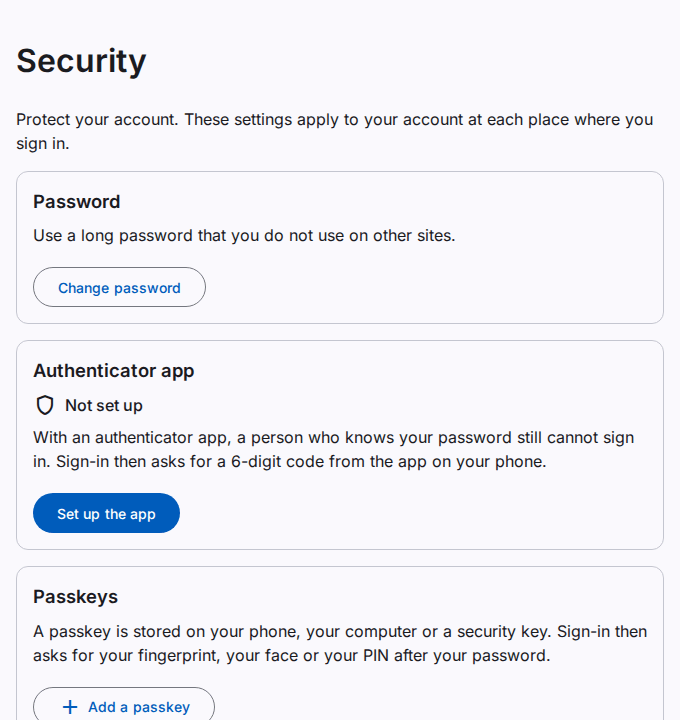
Use the Security page to protect your account. An authenticator app on your phone gives a new 6-digit code every 30 seconds. With the app, a person who knows your password still cannot sign in.
The settings on this page are for your user. They apply at each address where you sign in.
Before you start
- Install an authenticator app on your phone. Many free apps are available.
- Make sure that the time on your phone is correct. The codes depend on the time.
Set up the authenticator app
- In the top bar, select Account (the person icon).
- Select Security.
- Select Set up the app.
- If the Confirm it is you dialog opens, type your Password. Then select Confirm.
- In the authenticator app, add an account.
- Scan the QR code with the app. If you cannot scan the code, type the key under the QR code in the app.
- In Code from the app, type the 6-digit code that the app shows.
- Select Turn on.
- Caution: You see the recovery codes only one time. Select Copy or Save as a text file. Keep the codes in a safe place, away from your phone.
- Select I saved the codes.
- Select Done.
Result
The page shows On since and the date. From now on, sign-in asks for a code from the app after your password.
Add a passkey
A passkey is a second way to do the second step. The passkey stays on your phone, your computer or a security key. Sign-in then asks for your fingerprint, your face or your PIN.
- On the Security page, select Add a passkey.
- In Name of the passkey, type a name, for example "My phone".
- Select Make the passkey.
- If the Confirm it is you dialog opens, type your Password. Then select Confirm.
- Do the steps that your device shows.
The passkey shows in the Passkeys card. You can have up to 10 passkeys. Select Rename to change the name. Select Remove to remove the passkey.
At sign-in, select Use a passkey after your password. In Confirm it is you, type your password, then select Use a passkey.
Recovery codes
A recovery code replaces the code from the app one time. Use a recovery code when you do not have your phone.
- You get 10 codes. Each code works one time only.
- The page shows the number of codes that are left. When only a few codes are left, the page shows a warning.
- To get 10 new codes, select Make new codes. Then select Make new codes again. The old codes stop working. Save the new codes.
"Confirm it is you" with the app
Some changes ask for your password again. If you use an authenticator app, the Confirm it is you dialog also asks for a code:
- In Password, type your password.
- In Code from the app, type the code from the app. You can also select Use a recovery code and type a recovery code.
- Select Confirm.
Remove the authenticator app
Caution: After this step, sign-in asks for your password only. Your recovery codes are deleted too.
- Select Remove the app.
- If the Confirm it is you dialog opens, type your Password and the Code from the app. Then select Confirm.
- Select Remove the app.
Signed-in devices
The Signed-in devices card shows the devices where your account is signed in at this address. This device is the device that you use now.
- To end the session on one device, select Sign out next to the device. Then select Sign out again.
- To end the sessions on all other devices, select Sign out on all other devices. Then select it again.
Sign out a device that you do not know. Then change your password.
When the second step is required
Your administrator can make the second step necessary. Then you cannot remove your last authenticator app or passkey. See Set up the second sign-in step when it is required.
E-mails about changes
The system sends you an e-mail after each change of your second step: an app or a passkey that you add or remove, new recovery codes, and a reset by an administrator. You also get an e-mail when somebody uses one of your recovery codes. If you did not make the change, speak to your administrator immediately.
If you lose your phone
- Sign in with a recovery code. Then select Remove the app and set up the app on your new phone.
- If you have no recovery codes, ask your administrator for help. An administrator can reset the second step of your user.