
Use the home page and the top bar
The home page is the first page after you sign in. The top bar and the navigation are on all pages of the workspace.
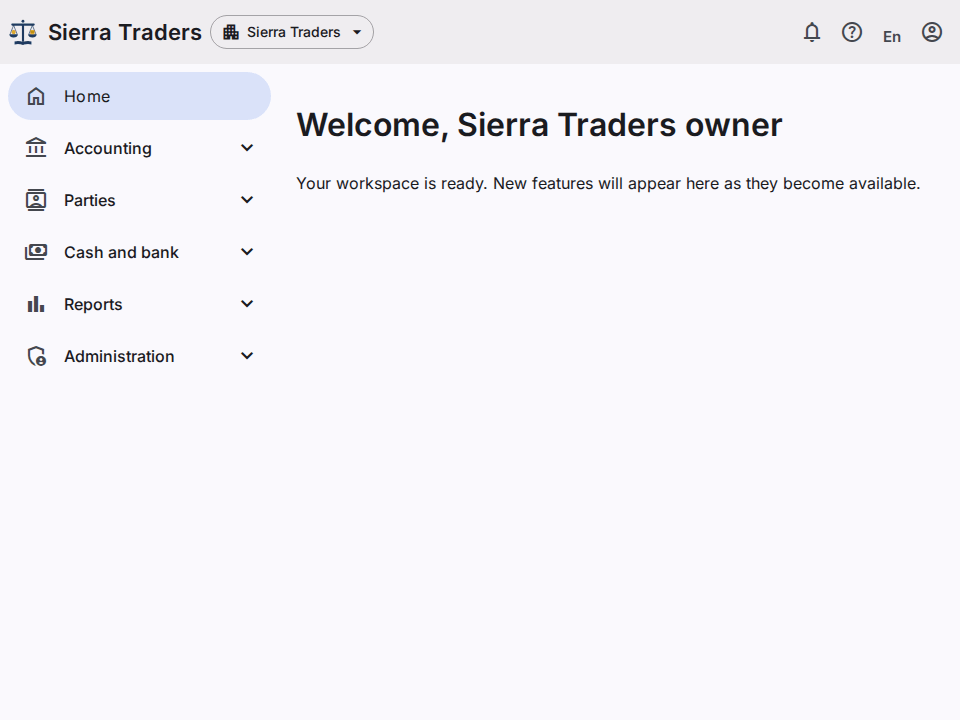
The navigation
The navigation shows the pages that you can use. The list depends on your permissions. For example, you see Users only if you have the permission to see the users.
The pages are in groups: Accounting, Parties, Reports and Administration. Select a group to open or close it. The group of the current page opens automatically, and the browser keeps the groups that you opened. The current page is marked.
You can also put the menu at the top of the page. Refer to Change the language, the theme and the menu position.
On a phone or a narrow screen, the navigation is not open. Select Menu (the icon with three lines) to open it.
To go back to the home page, select Home. You can also select the logo in the top bar.
The top bar
The top bar shows the name of your workspace. It also has these buttons:
- Notifications (the bell): shows your notices. See Use the notices.
- Help (the question mark): opens this help panel. The panel shows the help for the page that you use. Select the button again to close the panel.
- The language button (En or اردو): changes the language and the theme. See Change the language, the theme and the menu position.
- Account (the person icon): opens the menu of your user.
The account menu
The account menu shows your name and these items:
- Number and date format: see Change the number and date formats.
- Security: see Protect your account with an authenticator app.
- Change password: see Change your password.
- Sign out: ends your session.
Sign out
- Select Account.
- Select Sign out.
The system shows the sign-in page.