
See the receivables aging
The receivables aging shows the balance of each customer on a date in five age buckets: 0–30 days, 31–60 days, 61–90 days, 91–365 days and more than 365 days. You must have the View party reports permission.
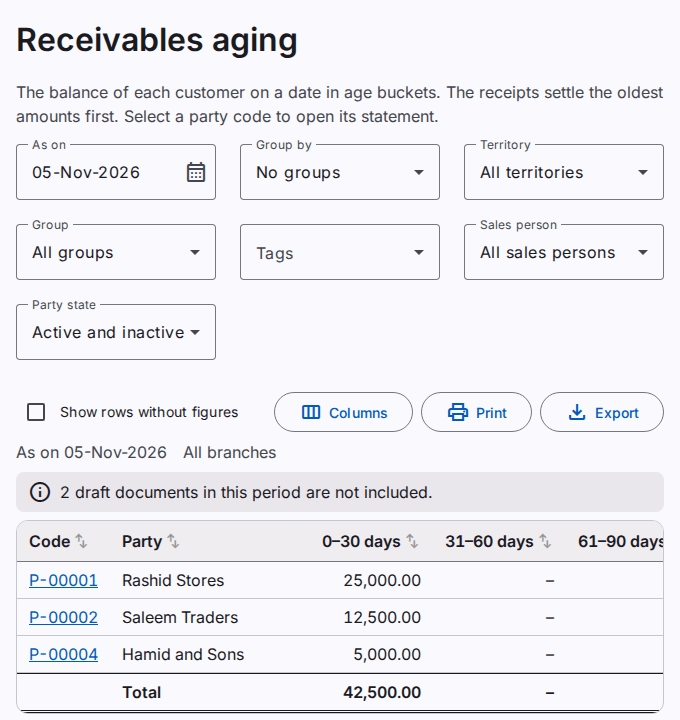
Select the date, the groups and the filters
- Type the date in As on. The default is today.
- In Group by, select Territory or Sales person to see a total for each group.
- Use the filters of territory, party group, tags, sales person and party state. Refer to See the balances of the parties.
How the report calculates the age
The age of an amount is the number of days from the date of the document to the As on date.
- The report puts each debit of the customer (for example a sale) in the bucket of its age.
- The report adds all the credits of the customer (for example the receipts).
- The report applies the credits to the oldest bucket first, then to the next bucket.
- When the credits are more than the debits, the remainder shows in Advance.
The Net balance column shows the balance of the customer. A reversed document and its reversal do not show in the aging.
The report does not use the items that a user selected in Settle items. Thus the open items on the party page can be different from the aging. The aging is always calculated with the same rule, also for an earlier date.
Open the statement of a customer
Select the code of a customer. The statement of the customer opens.
Sort the rows
Select the name of a column to sort the rows by that column. Select it again to sort in the opposite direction. Select it a third time to show the rows in the order of the report. In a group, the rows sort in the group. The sort is on the screen only. The print and the export use the order of the report.
Print or export the report
Select Print to make a PDF file. The default paper is A4 landscape. Select Export to save an Excel or CSV file. Refer to Print and export a report.