
See the statement of a party
The party statement shows the posted entries of one party for a period, with the opening balance, a running balance and the closing balance. You must have the View party reports permission.
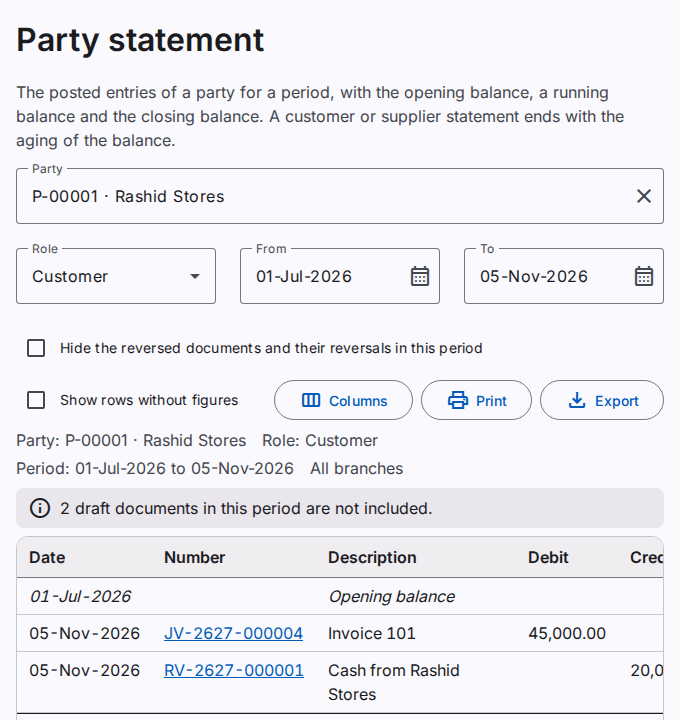
Open the statement
Use one of these methods:
- In the menu, select Reports › Party statement. Type a part of the code, the name or the phone number in Party. Select the party in the list.
- On the page of a party, select Statement.
- In the party balances or in an aging report, select the code of a party.
You see only the parties that you can see on the Parties page. For example, a field agent sees only the customers of the territories of the agent.
Select the role and the dates
- In Role, select the role of the party. The default is the first role of the party.
- To see all the roles in one list, select All roles (net balance). This choice shows only for a party with two or three roles.
- Type the first date in From. Type the last date in To.
The default dates are the start of the fiscal year and today.
Read the statement
- The Opening balance row shows the balance before the first date.
- Each entry shows the date, the number of the document, the description, the debit or the credit, and the balance after the entry. "Dr" is a debit balance: the party owes the company. "Cr" is a credit balance: the company owes the party.
- An item of the opening balances shows "Opening balance" and the date of the item.
- The last row shows the totals of the period and the closing balance.
With All roles (net balance), a column Role shows the role of each entry. The balance is the net balance of all the roles. The set-offs between the roles of the party do not show, because they do not change the net balance.
The statement of a customer or a supplier ends with the aging of the closing balance. Refer to See the receivables aging.
A reversed document shows two entries: the document and its reversal. The description of the reversal starts with "Reversal:".
Hide the reversed documents
Select Hide the reversed documents and their reversals in this period. The statement then does not show a document and its reversal when both have a date in the period. The two entries cancel each other, so the opening balance, the totals and the closing balance do not change.
When only one of the two entries has a date in the period, the statement shows that entry. Then the balances stay correct. The criteria line of the statement and of the print tells you that the option is on.
Open a document
Select the number of an entry. The document opens. You must have the permission to see that type of document.
Print or export the statement
Select Print to make a PDF file. Select Export to save an Excel or CSV file. Refer to Print and export a report.