
Migrate a company from files
A migration brings a company from another system: the chart, the parties and the opening balances at one date, the cutover date. The work in the product starts on the next day. Open Settings, Data import, then Open the migration.
Before you start
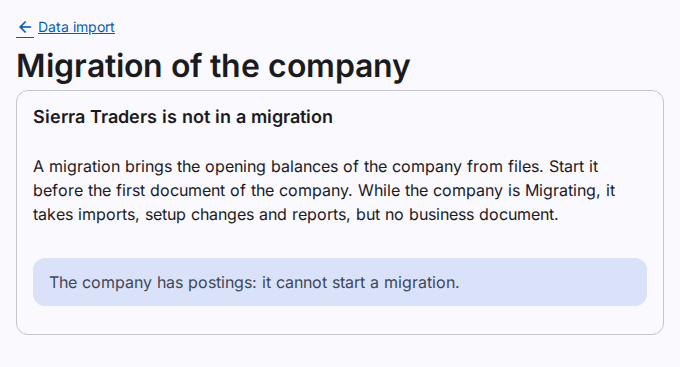
- Start the migration before the first document of the company. A company with postings or with opening balances cannot start one.
- Caution: While the company is Migrating, it posts no business document. It takes the import files, the changes of the setup and the reports.
- Use the last day of a month as the cutover date, for example the date of the last trial balance of the source.
- To start the migration, to confirm the checks, to go live and to reset, you need the role Workspace administrator. A support session cannot do these steps.
Start the migration
- Select Start migration.
- In Cutover date, type the last day of a month.
- In Source system, type the name of the old system (optional).
- Select Start migration in the dialog.
Import the files
Import the files on the page Data import in the order of the page:
- The statement lines and the chart of accounts (optional: without them, the company keeps the standard chart).
- The posting accounts, the territories and the parties.
- Account balances: the balance of each account at the cutover date, also the income and expenses of the year to date.
- Customer open items and Supplier open items: the open items of each party with their original dates.
- Source trial balance (optional): the trial balance of the source, for the comparison.
Each file type has an article with its rules and columns, for example the Account balances file.
The balance files write the lines of the draft opening balances. A new file of the same type replaces the lines of the earlier file. When the lines do not balance, the system adds one rounding line on the account of the migration differences.
The opening balances do not take the stock accounts. The system writes the balance of each stock account of the file on the opening balance clearing account. The opening balances of the stock module clear it later.
Read the checks
The page shows each check with its result and figures:
- Passed: the check is correct.
- Failed: correct the files and import them again. Open the rows that fail to see the accounts or the parties.
- Not checked: the data for the check is not there, for example without a source trial balance.
- For your review: figures to compare with the reports of the source, for example the age of the open items.
The check R-04 compares the opening balance clearing account with the source total of the stock accounts, and shows their number and total. It does not compare the rounding line; the check R-03 checks it.
Select PDF of the checks or Excel of the checks to keep the report.
Approve a rounding difference
A rounding line up to the tolerance (PKR 100) needs no approval. A larger line needs an approval with a reason.
- Select Approve the difference.
- Type the reason.
- Select Approve.
If the lines change after the approval, the system asks for a new approval.
Post the opening balances
- Select the link to the draft opening balances.
- Select Post. The system checks the migration first. A failed check stops the posting.
Go live
- Post the opening balances.
- Select the check boxes of R-14 and R-15 (and of R-04 when there is no source trial balance).
- Select Go live.
The company is then Live. The months up to and including the cutover month lock for good. No document can have the cutover date or an earlier date.
Reset a migration
Before Go live, you can start again.
Caution: The reset removes the opening balances, the parties, the territories and the chart of the company. The company gets the standard chart again. The import files and the history stay.
- Select Reset the migration.
- Type the company code.
- Type the reason.
- Select Reset.