
Enter the opening balances
The opening balances are the balances of the company on the day before it starts to use the product. They include the money in cash and in the bank, the amounts that customers owe, the amounts that the company owes to suppliers and employees, and the capital. You must have the View the opening balances permission to see the Opening balances page.
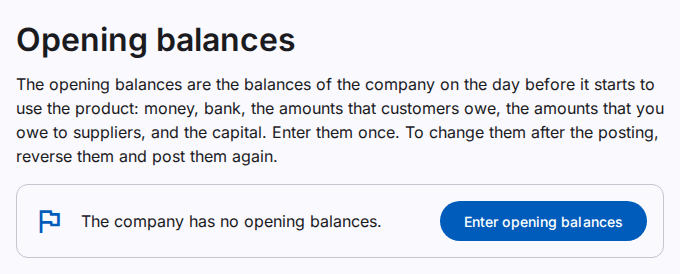
A company has one set of opening balances. First it is a draft. A draft does not change the ledger, and you can change it or delete it. When you post the opening balances, the ledger gets one journal entry, and the parties get their open items. To change posted opening balances, reverse them and post a new copy.
The opening date
The Opening date is the last day before the company starts to use the product. For example, if you start on 1 July 2026, the opening date is 30 June 2026. Enter the documents of the company from the next day.
If the fiscal year of the opening date does not exist, the posting makes it. Refer to See the fiscal years.
Make a draft
You must have the Enter the opening balances permission.
- In the menu Accounting, select Opening balances.
- Select Enter opening balances.
- Type the Opening date. You can type a short form, for example
30/6. Refer to Type dates and amounts quickly. - Type a Description, for example "Opening balances from the old books".
- Enter the account balances. Refer to the next section.
- Enter the party balances. Refer to the section after it.
- Select Save draft.
You can save the draft many times and continue later. A draft can have up to 5,000 lines.
Account balances
Select Account balances. On each line:
- Type the account code or a part of the account name. Select the account in the list.
- Type the Debit or the Credit. A line has one side only. Assets have a debit balance. Liabilities and capital have a credit balance.
The list does not show these accounts:
- The accounts for customers, suppliers and employees. Enter these balances as party balances.
- The opening balance clearing account. The system uses it.
- The stock accounts and the other accounts that a module posts. The stock comes with the opening stock of the inventory. Until then, the totals of the balance sheet are lower. The balance sheet still balances.
If the opening date is in the middle of a fiscal year, also enter the balance of each income and expense account from the start of the year. Then the profit and loss of the year is complete.
Party balances
Select Party balances. Enter one line for each open invoice or bill of a party, or one line with the balance of the party. On each line:
- Type the code or a part of the name of the party. Select the party in the list.
- Select the Role: customer, supplier or employee. A party with one role gets that role.
- Type the Item date: the date of the invoice or the bill. If you leave it empty, the item gets the opening date. The item date cannot be after the opening date.
- Type the Reference, for example the number of the old invoice.
- Type the Debit or the Credit. A customer owes the company a debit amount. The company owes a supplier a credit amount. An advance from a customer is a credit amount.
All items of one party role must be on the same side. If a customer has an invoice and an advance, enter the net amount.
The aging of the party starts from the item dates. Receipts and payments later settle the oldest items first. Refer to Add or change a party.
Branches
If the company has more than one branch, each line has a Branch. A cash or bank account of a branch gets its branch. Leave the branch empty for a balance of the whole company. At the posting, the system adds one line on the opening balance clearing account for each branch. Thus the trial balance of each branch balances.
In a migration, the system writes the lines of the balance files. If the company has one active branch, these lines get that branch. If the company has more branches, these lines have no branch.
The totals and the difference
The box above the lines shows the totals of the account balances and of the party balances, the total debit, the total credit and the Difference. The difference shows in red until it is zero. You can post only when the difference is zero.
Post the opening balances
You must have the Post the opening balances permission. This permission needs a new confirmation of your identity, and it is not available in a support session.
- Open the draft.
- Select Post.
The page saves your changes first. If the company has postings on or before the opening date, the page asks you to confirm. Usually the opening date is before the first posting, so check the date. The business history records your confirmation.
After the posting, the ledger, the trial balance and the party balances show the opening balances. A document that is dated on or before the opening date shows a note, and Post asks you to confirm.
Reverse and correct the opening balances
You must have the Reverse the opening balances permission.
Warning: You cannot undo a reversal.
- Open the posted opening balances.
- Select Reverse.
- Type the Reason.
- Select Reverse.
The reversal is dated on the opening date. Items that receipts or payments settled become open again. To enter the correct balances, select More actions and then Copy as new draft. Correct the copy and post it. The receipts and the payments then settle the new items.
Select Print. The print shows the account balances and the party balances with their totals and the difference, on A4 paper. Refer to Print and export a report.