
Record a receipt
A receipt records money that comes into a cash or bank account. For example, a customer pays an invoice, a supplier returns money, or the bank pays profit.
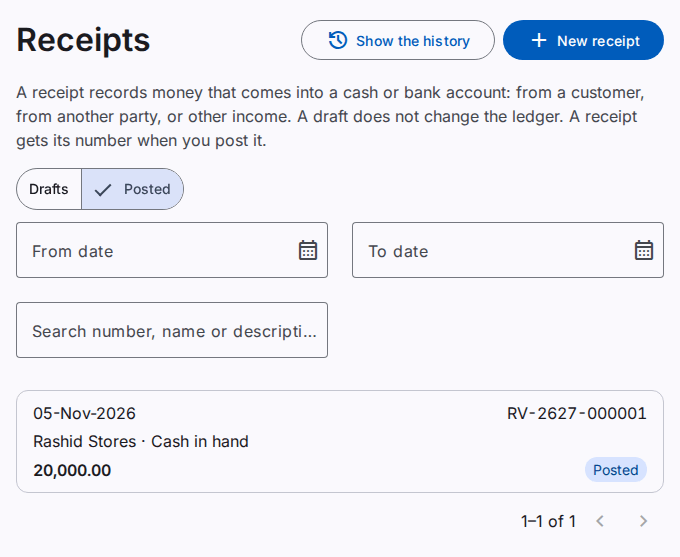
A receipt is first a draft. A draft does not change the ledger. When you post the receipt, it gets its number (for example RV-2627-000001) and the ledger gets a journal entry.
Make a receipt
You must have the Create receipts permission.
- On the Receipts page, select New receipt. Or, on the page of a party, select New receipt.
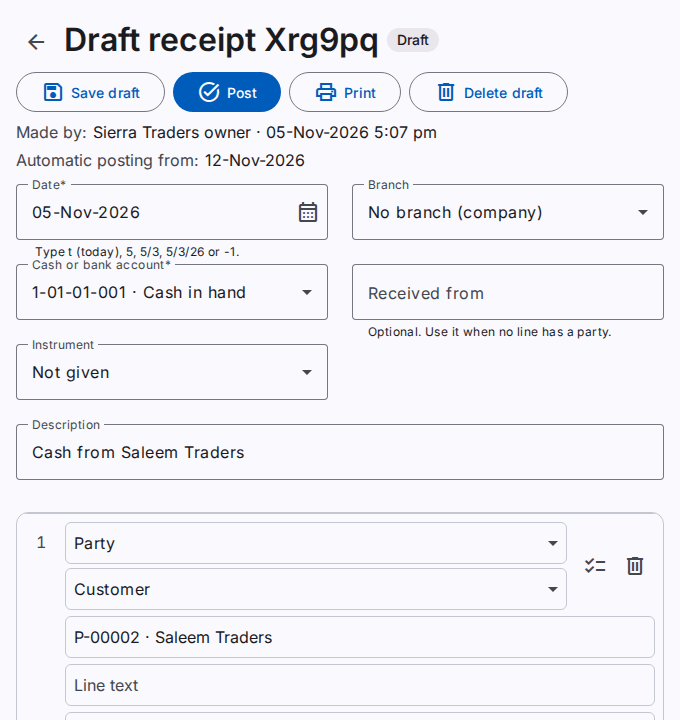
- Type the Date.
- Select the Cash or bank account that receives the money.
- In the lines, add who pays:
- A Party line: select the role (customer, supplier or employee), then type the code or a part of the name of the party.
- An Account line: type the code or the name of an income account (for example, rental income).
- Type the Amount of each line.
- Select the Instrument (cash, cheque, bank transfer, mobile wallet or card). For a cheque, type its number, its date and its bank.
- Type the Received from name when no line has a party. This field is optional.
- Select Save draft. Or, select Post to save and post.
The amount received is the total of the lines less the deductions.
Deductions
A bank can keep a part of the money as charges. Add a Deduction line with the account of the bank charges. For example, a customer sends 10,000 and the bank keeps 50: the customer line is 10,000, the deduction is 50, and the bank receives 9,950.
Caution: The deductions must be less than the other lines.
Settle items
When a customer pays, the receipt settles the oldest open items of the customer first. To settle a specific invoice, choose the items:
- On the party line, select Settle items (the icon at the end of the line).
- Select the items and type the amounts. The total must not be more than the line.
- Select Use these items.
When you post, the chosen items settle first. The rest of the line settles the oldest items. An amount with no open item stays open as an advance.
Caution: When another document settles a chosen item first, the posting stops. Open Settle items again and choose again.
Agent registers
A user with an agent register receives money only into that register. The page selects the register for the user. Refer to Cash registers.
To change a posted document in its own month, use Correct and not a reversal. Refer to Correct a posted document.
Reverse a receipt
You must have the Reverse receipts permission.
- Open the posted receipt. Select Reverse.
- Type the Reason. Check the date of the reversal. The date cannot be before the date of the receipt.
- Select Reverse.
The items that the receipt settled are open again.
Print a receipt
Select Print. The print is A5 portrait, with the amount in words and the signature boxes of the report profile. A draft prints with the mark DRAFT.
The print can show the balances of the party: the Previous balance before this receipt, the amount of the receipt, and the New balance. In the print dialog, select or clear Show the balances of the party. The default comes from the setting Show the balances on party documents. A reprint shows the same balances. For a draft, the previous balance is the balance now.
Find a receipt
The page has two tabs: Drafts and Posted. Use the search box to find a document by the number, the name or the description. The search finds a number that starts with the text. It also finds a name or a description that contains the text. To search a name or a description, type at least 2 letters or digits. When the list has more than 1000 receipts, the page shows "of more than 1000".