
Export all the data of your workspace
The Data export page makes one ZIP file with all the business data of your workspace. Use the file to keep a copy of your data, or to move your data to another system. Only a workspace administrator can export the data.
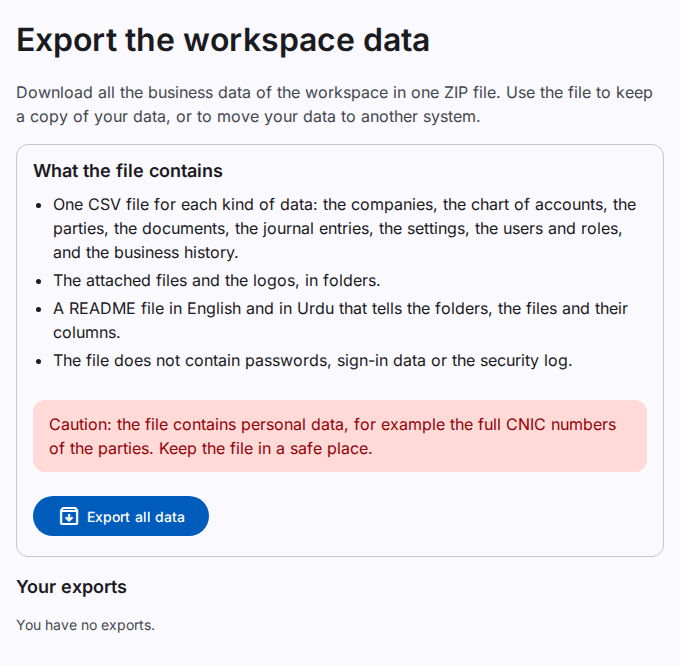
What the file contains
- One CSV file for each kind of data. The folder
workspacehas the data of the whole workspace: the companies, the users, the roles and the settings. Each company has a foldercompanies/<company code>with its chart of accounts, parties, documents, journal entries and business history. - The attached files and the logos, in the folder
attachments. - A README file in English (
README-en.txt) and in Urdu (README-ur.txt). It tells each file, its number of rows and its columns. - The file
manifest.json, with the number of rows and a checksum of each file.
The file does not contain passwords, sign-in data or the security log.
Caution: The file contains personal data, for example the full CNIC numbers of the parties. Keep the file in a safe place. Do not send it by e-mail.
Export the data
- Select Data export.
- Select Export all data.
- Enter your password, and the code of your second sign-in step if you use one.
- Wait until the export is complete. You can leave the page. You get a notice when the file is ready.
- Select Download, or select the notice.
Rules
- One export can run at a time in a workspace.
- Each user can start 5 exports in one day.
- The download link works for 24 hours. Then the system deletes the file. To get the data again, export it again.
- Only the user who started the export can download the file.
- You can export the data also when the workspace is read-only. Do this before the date in the banner: after that date, the system deletes all data.
Read the files
- Open a CSV file in Excel or another spreadsheet program. The files are UTF-8, so Urdu text shows correctly.
- The first line of each file has the column names.
- Each row has an id in the column
id. A column with a name that ends in_idhas the id of a row in another file. - A date has the form YYYY-MM-DD. A time is in UTC.
- A text that starts with =, +, - or @ has the character ' in front of it. A spreadsheet program then does not read the text as a formula.